

If your Expert Advisors or indicators suddenly stopped working after launching MetaTrader 4, you’re not alone. A recent MT4 platform update (new build) has broken compatibility with a large number of EAs and indicators across the industry, not just on ForexCracked. In this article, we explain exactly what happened, what we’re doing about it, and how you can get your tools working again right now.
What Happened?
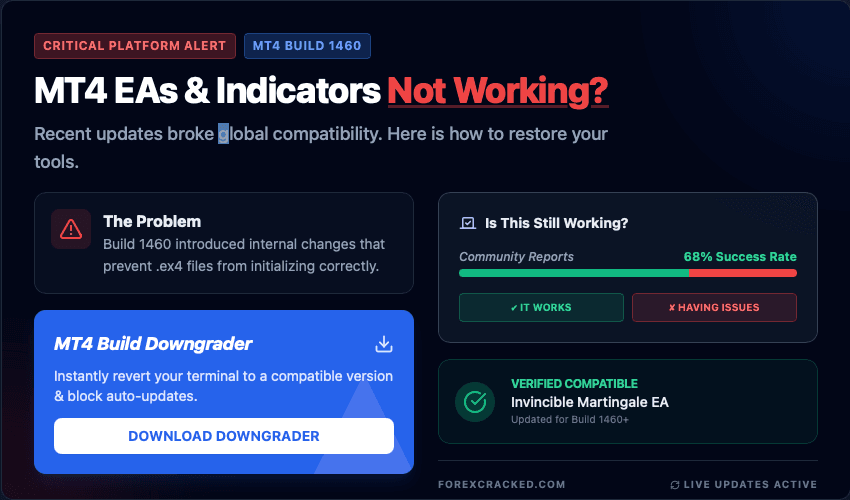
MetaQuotes, the company behind MetaTrader 4, recently pushed a new build update (Build 1460) to all MT4 terminals. This update introduced internal changes that broke compatibility with many compiled EAs (.ex4 files) and indicators. When you open your MT4 after the update, you may notice:
- EAs that were previously running fine now show errors or simply don’t load
- Indicators disappear from charts or fail to initialize
- Custom tools and scripts stop responding entirely
This is not a problem with the EAs or indicators themselves, it’s a platform level compatibility break caused by the new MT4 build.
What ForexCracked Is Doing About It
We are actively working through our entire library of EAs and indicators, recompiling and testing each one against the new MT4 build. Updated versions will be rolled out as they are verified.
One EA has already been updated and published
- Invincible Martingale EA – fully compatible with the latest MT4 build
Many more updates are coming. To stay informed about every new update as it’s released, subscribe to our newsletter, it’s the fastest way to know when your specific EA or indicator has been fixed:
Want updates even faster? All compatibility fixes go live in the ForexCracked VIP Group before they are published on the main site. If you rely on multiple EAs or indicators for your trading, the VIP Group ensures you get working versions as soon as they are ready, no waiting.
Check If Your EA or Indicator Is Working: Community Voting
We’ve added a new “Is This Still Working?” widget to every EA and indicator article on the site. This is a community driven system where users can report whether a tool is currently working or having issues after the MT4 update.
How it works:
- Visit any EA or indicator article on ForexCracked
- Scroll to the “Is This Still Working?” section
- Click “✔ It Works” or “✘ Having Issues” to cast your vote
- The widget displays a live percentage bar showing community feedback from the last 30 days
When we verify and update an EA to work with the new build, we manually mark it as “✔ Verified Working” with the date and update notes, so you can see at a glance which tools have been officially fixed.
This system doesn’t just help other traders, it directly helps us too. Your votes allow us to identify exactly which EAs and indicators are broken and, more importantly, which ones are the most in demand. The tools with the most community reports get prioritized for updates first. So if there’s a specific EA or indicator you want fixed, go to its article and cast your vote, it’s the fastest way to move it up the queue. Browse the full collection of MT4 Expert Advisors to find and vote on the tools you use.
The Fix: MT4 Build Downgrader
While we work on updating every EA and indicator, there is a way to get your tools working again immediately, downgrade your MT4 terminal to an older, compatible build. We built a simple tool to make this process easy and reversible.
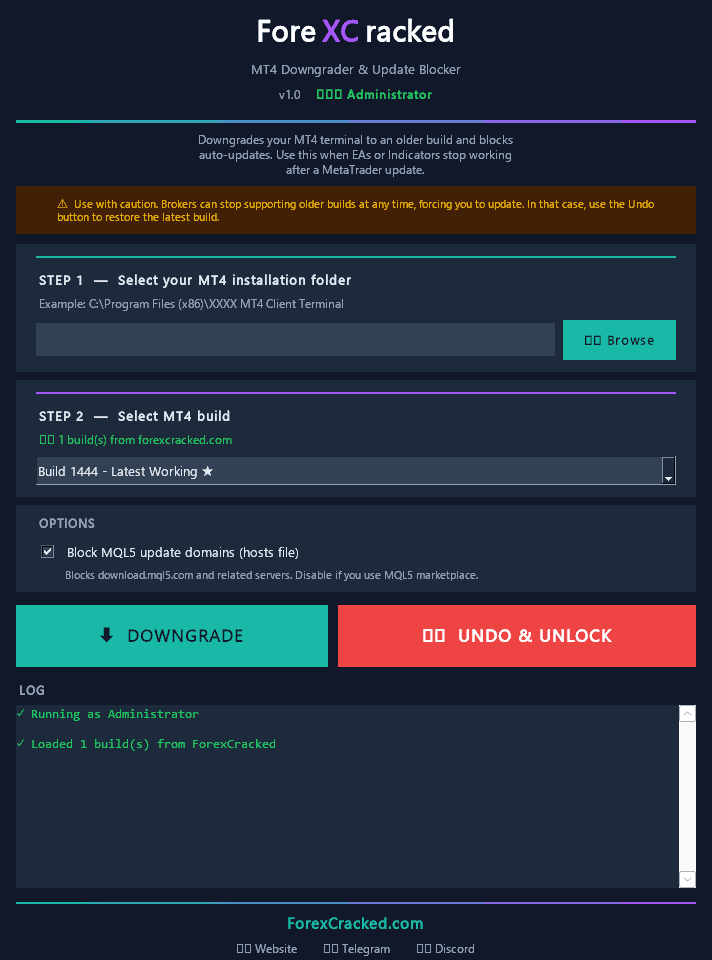
⚠️ Important: This is a temporary fix. Brokers can stop supporting older MT4 builds at any time, which would force you to update back to the latest version. We strongly recommend updating your EAs and indicators to their latest compatible versions as soon as they become available. Use this downgrader only as a bridge until then.
What the MT4 Build Downgrader Does
- Downloads an older MT4 build from ForexCracked and replaces your current one
- Blocks MT4 from auto updating back to the new build
- Includes an Undo button to restore everything to its original state if needed
- Automatically backs up your original files before making any changes
Once you fix your platform’s auto-trading settings, test it out by grabbing a new expert advisor MT4 free download from our verified collection.
How to Use It
- Step 1: Download the MT4 Build Downgrader
MT4 Build Downgrader
A Windows utility that replaces your MT4 terminal with an older build, blocks auto updates, backs up original files and has an Undo button to restore them.

 Built by ForexCrackedWe tested 1,200+ indicators. Then we built our own.Six years of reviewing EAs and indicators went into FXC Fusion: two engines, the seven-panel cockpit, MT4 and MT5, from the team behind this site.
Your download will start automatically. If it doesn’t, click here.Right now a download can take up to a minute to start. Please wait a moment, or use click here.
Download MT4Downgrader (Mirror)
- Step 2: Right-click the downloaded file and select “Run as Administrator” (It may still work without admin rights, but running as Administrator is recommended for full functionality.)
- Step 3: Select your MT4 installation folder (Example:
C:\Program Files (x86)\XXXX MT4 Client Terminal)
- Step 4: Pick a build from the dropdown menu and click DOWNGRADE
That’s it, MT4 will restart on the older build and your EAs and indicators should work again.
If Something Goes Wrong
Click the “UNDO & UNLOCK” button inside the tool. This will:
- Restore your original MT4 terminal files from the backup
- Remove the auto update block so MT4 can update normally again
Important Warnings
Before using the downgrader, please keep these points in mind:
- This is a temporary solution. It buys you time while updated EA/indicator versions are being released. Always switch to the properly updated versions when they are available.
- Brokers can drop support for older builds. If your broker stops supporting the build you’ve downgraded to, you will be forced to update. In that case, use the UNDO & UNLOCK button to restore the latest build.
- VPS users: The tool should work on most VPS environments without requiring admin rights, but this has not been fully tested across all providers. Proceed with caution.
- Your data is safe. The tool only replaces MT4 terminal executable files. Your account settings, trade history, and chart templates are untouched.
If you need help installing EAs and indicators after downgrading, check out our How to Install EA & Indicators in MT4/MT5 guide.
Stay Updated
This situation is evolving. We are pushing updates as fast as we can, and the best way to know exactly when your tools are fixed is to:
- Subscribe to our newsletter → Get ForexCracked Updates
- Check the “Is This Still Working?” widget on any EA or indicator article to see the latest community reports
- Get early access → The ForexCracked VIP Group receives all compatibility fixes before they go live on the main site
- Bookmark this page – we will update it as new information becomes available
We appreciate your patience while we work through the updates. If you run into any issues with the downgrader tool, reach out to us through the community channels linked on the site.
Now that your platform is fixed, you can download forex indicators and expert advisors from our verified library to start testing.


Discussion 3 comments
Forex gold investor needs an update
Mon plaster
Alpha gen
Gold trend scapler
Mt4 gold robert