

You’ve watched it happen. Price pokes above an obvious swing high, takes out every stop sitting there, then turns and closes back below it. By the time it looks clear on the chart, half the move is gone. A liquidity sweep indicator for TradingView is there to catch that candle when it closes, not three candles later.
Liquidity Sweep & Stop-Hunt Signals does exactly that. It marks the swing highs and lows where stops collect, flags the closed candle that sweeps one and snaps back, and draws the trade right there: entry, stop and target. Then it keeps watching. Every plan gets followed until the stop or the target is hit, or 100 bars pass, and the result goes on the label, so you can see how its signals have actually played out on your chart. It’s free and open-source, and version 1.1 (October 2026) corrected five problems we found in our own first release.
Key Takeaways
- Free, open-source liquidity sweep indicator for TradingView that tracks confirmed swing highs (buy-side liquidity) and swing lows (sell-side liquidity), and prints BUY or SELL when a closed candle trades through one and closes back on the other side with a rejection body (on by default)
- Each signal comes with a drawn plan: entry at the sweep candle’s close, a stop beyond that candle’s own high or low plus half an ATR, and a target at 2R by default
- Every plan is followed until price touches the stop or the target, or until 100 bars pass, and the result is added to its label. The dashboard counts the results for BUY and SELL plans separately and shows how many plans each count is built on
- Signals are checked on closed candles only and don’t change after they print. It works from price alone, with no volume or order-flow data
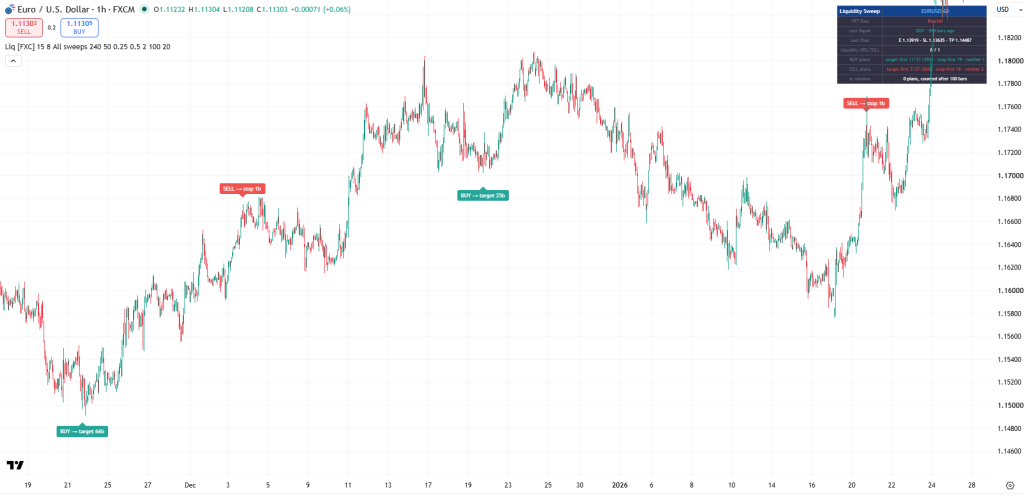
Table of Contents
What is a liquidity sweep?
A liquidity sweep is a candle that trades through a level where stop orders tend to sit, usually a recent swing high or low, sets those stops off, and then closes back on the other side of the level. You’ll also hear it called a stop hunt. It’s one of the core ideas in ICT (Inner Circle Trader) and smart money concepts (SMC) trading.
Think about where the stops are. Shorts tend to park them just above the last swing high, and that pile is buy-side liquidity. Longs keep theirs just under the last swing low, which is sell-side liquidity. When price runs above the high and closes back below it, that’s a buy-side liquidity sweep. The read is bearish, so it’s also called a bearish liquidity sweep. Run the low and close back above it, and you’ve got the mirror image: a sell-side liquidity sweep, or a bullish liquidity sweep.
The close is the whole point. If the candle closes beyond the level, it’s a breakout, not a sweep.
What does a liquidity sweep look like on a chart?
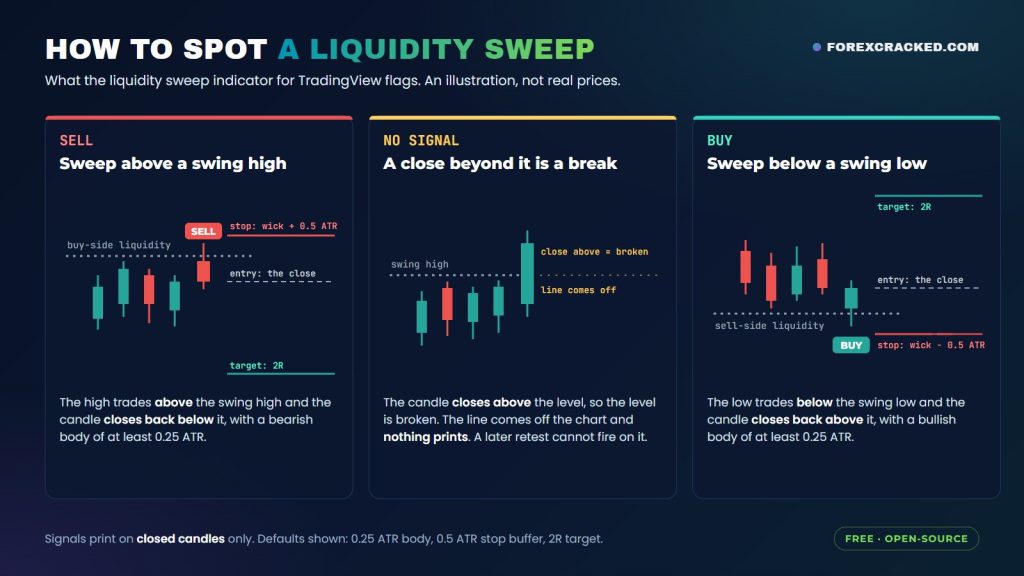
A wick through the level and a body back inside. That’s the liquidity sweep pattern. The wick is where the stops got filled, and the close tells you the move didn’t hold. Put one next to a candle that really breaks out and the difference jumps out. That’s the diagram below: a bearish sweep and a bullish sweep, each with the plan the indicator draws, and a break in the middle that prints nothing.
Liquidity sweep examples on EURUSD 1-hour
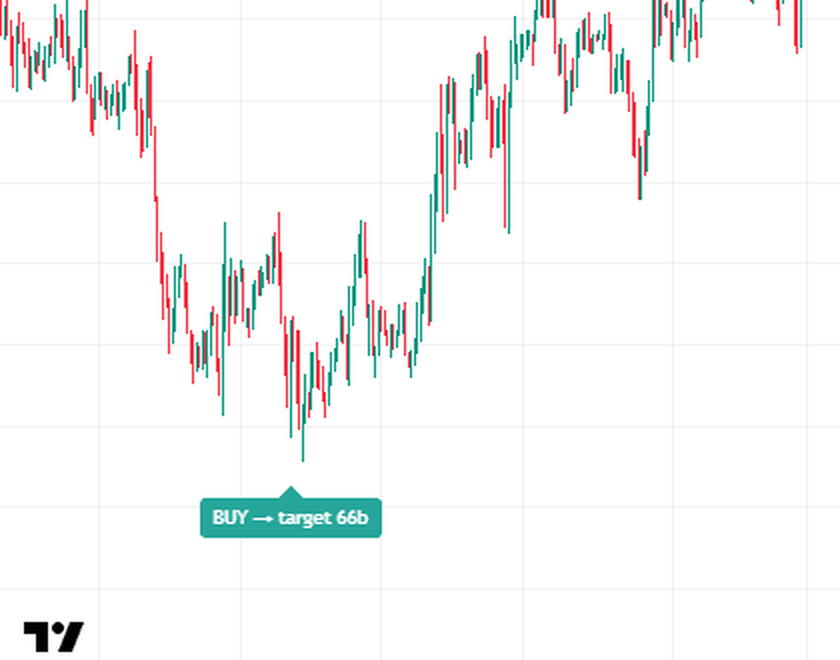
Go back to the EURUSD 1-hour chart at the top of this page. In late November 2025, a candle ran under an earlier swing low and closed back above it. The indicator printed BUY, and the label later read BUY → target 66b: the 2R target came 66 bars after the entry, before the stop. Price dipped a few pips under the sweep candle shortly after, but not as far as the stop, which sits half an ATR below that candle’s low.
Not every sweep goes that way, and the same chart shows it. The SELL in early December was stopped out on the very next bar, and so was the one around January 20, while the BUY the week before Christmas reached its target in 25 bars.
How do you spot a liquidity sweep?
Three checks, in this order:
- A level worth sweeping. A confirmed swing high or low that price hasn’t closed through yet. We’d rather see a fresh, obvious swing get swept than a level buried in last month’s range.
- The run. The wick trades past the level. That’s where the stops get filled.
- The close back. No close, no sweep. Until the candle closes, a sweep in progress can still finish as a break, which is why the indicator waits.
The liquidity sweep candle’s body matters too. A candle that spikes above a high and then closes as a big bullish candle just under it hasn’t rejected anything. With the body rule on, that one doesn’t count as a SELL.
Liquidity sweep vs liquidity grab, liquidity run and break of structure
There’s no rulebook for these terms. They come out of ICT and smart money concepts, and traders draw the lines in slightly different places. The common usage looks like this:
| Term | What price does | Usually read as |
|---|---|---|
| Liquidity sweep | Trades through a swing high or low, then closes back on the other side | A reversal sign at that level |
| Liquidity grab | The same move. Some traders keep the word for a quick wick through a single level | Same as a sweep |
| Liquidity run | Takes the level and keeps going | Continuation toward the next level |
| Break of structure | A candle closes beyond a swing high or low | The trend continuing, or the structure changing |
This indicator flags sweeps, and grabs too if that’s your word for them. A candle that closes beyond a level is a break, and a break gets no signal.
What does this liquidity sweep indicator for TradingView flag?
Liquidity first. A swing high only counts once its high sits above the 15 bars on either side of it (that’s the Swing Strength setting), and swing lows work the same way. So a swing registers 15 bars after it prints, and the indicator then draws its dotted line back to the swing bar. It keeps up to 8 levels per side, and a ninth pushes the oldest one off.
Then it waits for a candle to close:
- SELL: the high trades above a tracked swing high and the candle closes back below it
- BUY: the low trades below a tracked swing low and the candle closes back above it
Any candle that trades through a level takes that level off the chart. Close back inside and it was swept, so a signal can print. Close beyond and it was broken: no signal, and nothing left behind to fire on a retest later. If one candle breaks a level and sweeps another on the same side, that side gets nothing at all.
Two more rules keep it clean. With Require Rejection Body on (the default), a SELL needs a bearish candle and a BUY a bullish one, each with a body of at least a quarter of an ATR. ATR is the Average True Range over 14 bars, the indicator’s yardstick for a normal bar. And with the body rule off, one candle can sweep a high and a low together and qualify both ways. Then nothing prints. It didn’t pick a side, so the indicator doesn’t either.
The trade plan it draws
The second a signal prints, you get the whole trade on the chart:
- Entry at the sweep candle’s close
- Stop past that candle’s own high (SELL) or low (BUY), plus half an ATR
- Target at your reward-to-risk multiple of the stop distance, 2R by default
All three prices go in the label. The stop sits past the wick for a reason. If price takes that wick out again and keeps going another half an ATR, the sweep idea is dead and you’re out. Only the latest plan stays drawn so the chart doesn’t turn into spaghetti, and the dashboard repeats its prices. Older plans aren’t gone, though. Hover over any BUY or SELL label and its entry, stop and target pop up.
The part that’s new in v1.1: every outcome on record
From the candle after a signal, the indicator follows the plan and writes down which price got hit first:
- Target first: the label gets “→ target” and the bars it took, so it reads something like BUY → target 14b
- Stop first: “→ stop” and the bars
- Neither: 100 bars (the Outcome Window) go by without either one
If one candle touches both, it’s logged as stop first, unless that candle opened past the target. One candle can’t tell you which price came first, so the cautious call wins.
One detail keeps the count straight. A plan only joins the dashboard numbers once its Outcome Window has closed, however it ended. Count quick stops and quick targets the moment they happen and you’d tilt the numbers toward whichever one tends to come faster. So don’t be surprised when a label already says “→ stop” and the dashboard hasn’t counted it yet. You can see how many plans are waiting in the In window row. And the record stays off Heikin Ashi, Renko and the other synthetic chart types, because those prices never traded.
The BUY plans and SELL plans rows count each side separately: target-first out of all finished plans, the percentage, then the stop-first and neither counts. Below 20 finished plans you just get the sample size. Six plans can’t tell you anything, so the percentage waits.
On the EURUSD 1-hour chart above, the dashboard had counted 31 finished BUY plans across all the history loaded on that chart, not just the two months in the picture: 11 reached the target first (35%), 19 hit the stop first and 1 did neither. SELL plans came to 27, with 7 reaching the target first (26%), 18 stopped first and 2 neither.
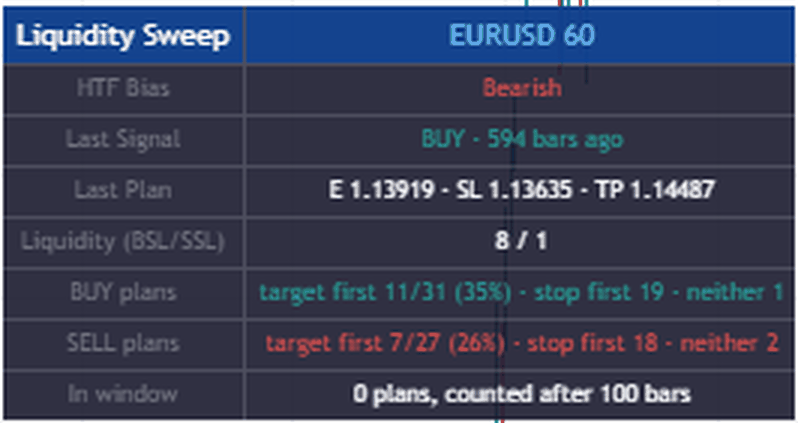
Reading it takes one line of math. At the default 2R, one target pays for two stops, so targets and stops come out even when about one plan in three hits the target first (1 ÷ 3, or 33%). Change Reward : Risk and the line moves with it: 50% at 1R, 40% at 1.5R, 25% at 3R. Above the line, the targets on your chart paid for the stops, before costs.
For the exact check at 2R, double the target-first count and set it against the stop-first count. On that EURUSD chart, the 11 BUY targets made 22R against 19R lost on stops, just over the line. The 7 SELL targets made 14R against 18R, under it. With 31 and 27 plans, both results sit well within chance of the line, so read them as that chart’s past, not proof of an edge either way. Spread, commission and slippage aren’t in there, and since the record works from each candle’s high and low, it can’t see the order of moves inside a candle.
Filters: trend bias and the rejection body
The Trend Filter decides which sweeps get through:
- All sweeps (default): everything that passes the body rule
- HTF trend only: BUY only above the higher-timeframe EMA, SELL only below it. That’s the setting for buying swept pullback lows in an uptrend and selling swept rally highs in a downtrend.
- Counter-HTF only: the opposite, for fading the bigger trend at the edges of a range
The higher-timeframe reference is a 50 EMA on the 4-hour chart by default, read from the last completed 4-hour bar, so a filtered signal looks the same after a reload as it did live. Pick a higher timeframe that’s a whole multiple of your chart: 4 hours over a 1-hour chart works, 4 hours on a 4-hour chart doesn’t. Get it wrong and both filter modes go quiet, and the dashboard tells you why. On a 4-hour chart, use the daily.
Want every sweep no matter what its body looks like? Turn the rejection body rule off.
The dashboard and TradingView alerts
The dashboard sits top right:
- HTF Bias: bullish or bearish against the higher-timeframe EMA, or a note when it can’t be used
- Last Signal: BUY or SELL, and how many bars ago
- Last Plan: entry, stop and target of the latest plan, even with the plan lines switched off
- Liquidity (BSL/SSL): how many buy-side and sell-side levels are live
- BUY plans and SELL plans: the outcome record for each side
- In window: plans still inside their Outcome Window and not counted yet
For a TradingView liquidity sweep alert, open Alerts and pick the indicator as the condition. Liquidity Sweep BUY, SELL or Any sends a short message. Any alert() function call sends the entry, stop and target prices inside the alert, and that’s the one we’d pick. Alerts fire when the sweep candle closes. A TradingView alert keeps the settings and the version it was created with, so if you set alerts up on version 1.0, delete them and create them again.
Settings
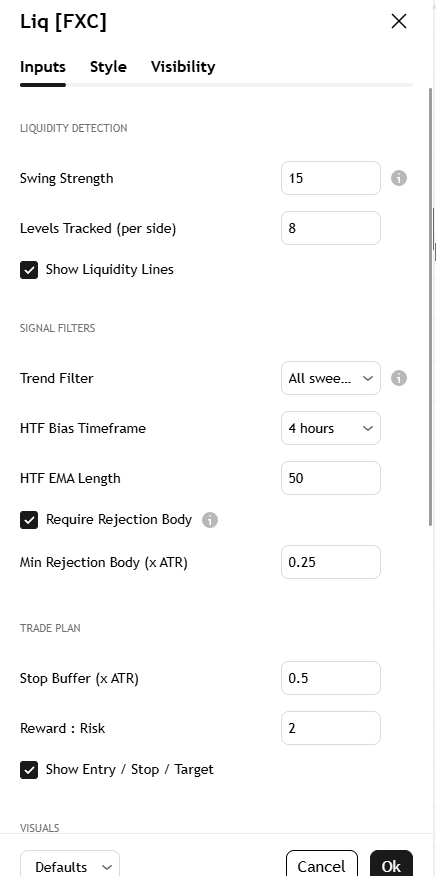
The defaults are fine to start with. Two are worth changing:
- Swing Strength: 15 bars each side. Raise it for fewer, bigger swings (and more delay). Lower it for more levels and more noise.
- Reward : Risk: 2.0, the target distance as a multiple of the stop distance. A bigger multiple needs fewer targets to break even (25% at 3R).
The rest can stay where they are:
- Levels Tracked: 8 per side.
- Trend Filter, HTF Bias Timeframe, HTF EMA Length: All sweeps, 240 (4 hours), 50.
- Require Rejection Body / Min Rejection Body: on, 0.25 ATR.
- Stop Buffer: 0.5 ATR past the sweep candle’s high or low.
- Outcome Window: 100 bars. How long a plan gets before it’s logged as neither, and when it joins the count.
- Minimum n before a percentage prints: 20.
Plan lines, BUY and SELL labels, the dashboard and the liquidity lines are all on by default. You can change the bullish, bearish and liquidity-line colors. The gray entry line and the dashboard keep fixed colors.
How to add it on TradingView
- Open its TradingView page: Liquidity Sweep & Stop-Hunt Signals [ForexCracked].
- Click Add to favorites, or click Use on chart to load it straight away.
- On your chart, open the Indicators menu, go to Favorites, and click Liquidity Sweep & Stop-Hunt Signals [ForexCracked].
- Load plenty of history so the outcome record has something to count. A 1-hour or 4-hour chart is a good place to start.
Liquidity Sweep & Stop-Hunt Signals [ForexCracked]
![Liquidity Sweep & Stop-Hunt Signals [ForexCracked]](https://www.forexcracked.com/wp-content/uploads/2026/10/liquidity-sweep-indicator-tradingview-eurusd-1h.png)
A free, open-source liquidity sweep indicator for TradingView that flags stop hunts at swing highs and lows on closed candles, draws entry, stop and target, and records how each plan ended.
Pros
- Signals on closed candles only, never on a broken level's retest
- Draws entry, stop and target the moment a sweep prints
- Logs target-first and stop-first results per side, with sample size
- HTF trend filter reads only completed higher-timeframe bars
- Alert message can carry the plan's entry, stop and target
Cons
- Swing levels register 15 bars late at the default Swing Strength
- Tracks its own swings only, not daily or session levels
- Outcome record covers loaded history only and ignores costs
- Only the latest plan stays drawn on the chart
- Price only: no volume or order-flow check on sweeps
Summary
A sweep arrow on its own doesn't tell you much. This liquidity sweep indicator flags the closed candle that runs a swing and snaps back, draws the entry, stop and target on that close, and then follows the plan until the target or the stop gets hit, or 100 bars pass. The dashboard keeps the count for each side, with the sample size, so you can see how its plans have played out on your own chart before you trust the next one. Free and open-source.
 Need a TradingView account?The free plan runs this indicator, with charts, alerts and watchlists.
Start free
Need a TradingView account?The free plan runs this indicator, with charts, alerts and watchlists.
Start free

 Built by ForexCrackedWe tested 1,200+ indicators. Then we built our own.Six years of reviewing EAs and indicators went into FXC Fusion: two engines, the seven-panel cockpit, MT4 and MT5, from the team behind this site.
Your download will start automatically. If it doesn’t, click here.Right now a download can take up to a minute to start. Please wait a moment, or use click here.
How to trade liquidity sweeps with it
A simple liquidity sweep strategy with this indicator takes four steps:
- Read the record first. Open the pair and timeframe you actually trade, scroll back so the chart loads more history, and check the BUY plans and SELL plans rows. Under 20 finished plans the dashboard prints no percentage, so there’s nothing to read yet. At 2R, a target-first share well under one in three means the stops have outweighed the targets on that chart, so check the record with the trend filter on, or on another timeframe, before you trade it there.
- Favor the levels everyone can see. The indicator only tracks its own swing highs and lows, so give a sweep more weight when that swing is also a prior day or week high or low, a session high or low, or a clean double top or bottom. Those are the obvious places for stops. Our Liquidity Draw Probability Map marks those pools and counts how often each kind got reached, so run the two together: the map for which pools price has reached on that chart before, this indicator for the moment one of its swing levels gets swept.
- Keep the stop past the sweep candle. Take the drawn plan or your own entry, but if price takes that wick out again, you’re wrong. Get out.
- Size off the stop. Same fixed risk on every trade, measured from entry to stop.
In a strong uptrend, a SELL off a swept high trades against the trend. That’s what the HTF trend filter is for: set it to HTF trend only and counter-trend signals don’t print. Check the record with it on and off on your own chart before you rely on it.
What doesn’t it do?
- It can’t see orders. No price-based indicator can. It marks where stops tend to sit, not where they actually are, and it uses no volume or order-flow data.
- Only its own swings. It tracks swing highs and lows at the Swing Strength setting. A prior day high, a session high or a double top only gets a signal when it’s also one of those swings.
- Swings show up late. At the default Swing Strength a swing registers 15 bars after it forms and its line is drawn back to the swing bar, so chart history shows levels before you’d have had them live. Signals only ever fire on levels that already existed.
- The record is per chart. It doesn’t carry from one pair or timeframe to the next, and it ignores costs. On Heikin Ashi, Renko and other synthetic charts the record isn’t kept at all, while the signals and plan prices still print from those synthetic prices, so use standard candles.
- One timeframe. The trend filter is the only higher-timeframe input.
How we built and checked it
We built Liquidity Sweep & Stop-Hunt Signals from scratch in Pine Script v6 and published it open-source in July 2026 (CC BY-NC-SA 4.0). Every rule the indicator follows is in the open-source code on its TradingView page, so you can check our work.
Before writing this article, we went back through version 1.0 line by line against its own description. Five things didn’t hold up:
- The two trend-filter modes read the higher-timeframe bar that was still forming, so a filtered signal could change after a chart reload. The default All sweeps mode was fine.
- A level price had already closed through stayed armed and could fire on a later retest.
- The rejection-body filter checked the body’s size, not its direction.
- The Enable Alerts switch did nothing.
- A candle that swept a high and a low together could print BUY and SELL at once, fire both alerts and draw only the BUY plan, even at the default settings.
Version 1.1 (October 2026) corrects all five, puts the full plan on the dashboard and adds the outcome record. The first version talked up failed breakouts without measuring a single one. Now you can see how the plans have actually played out on your own chart. The release notes on the TradingView page list every change.
Indicators to pair with it on TradingView and MetaTrader
Want the map that goes with it, or something for MetaTrader? The Liquidity Draw Probability Map marks the liquidity pools on your TradingView chart and counts how often each kind was reached, which helps when you’re picking a target after a sweep. If your entries come from a fair value gap or an order block after the sweep, our FVG and order block indicator for TradingView marks both.
On MetaTrader, there’s a buyside and sellside liquidity indicator for MT4, a liquidity zone indicator for MT4 and MT5, and a BOS and CHoCH indicator for MT4 and MT5 for breaks of structure. New to community scripts? Our guide shows how to install TradingView custom scripts. Or browse all of our TradingView indicators and the full free forex indicators library.
Frequently Asked Questions
Add Liquidity Sweep & Stop-Hunt Signals on TradingView
Liquidity Sweep & Stop-Hunt Signals is free and open-source. Add it to your charts here: Liquidity Sweep & Stop-Hunt Signals on TradingView
Risk disclaimer: Liquidity Sweep & Stop-Hunt Signals marks liquidity sweeps and draws trade plans from price alone. It doesn’t predict price and doesn’t place trades. The outcome record describes past plans on your chart, without spread, commission or slippage. Results depend on market conditions, your settings, and your own execution and risk management. This is shared for educational purposes and is not financial advice.


Discussion no comments yet
Is this still working?
Nothing here yet
No one has asked anything about Liquidity Sweep Indicator for TradingView With a Trade Plan yet. First question gets answered.